2 Hello World - Blinker
This chapter is based on the projectlet:

- 01_button
2.1 Projectlet Goals
- Setup the development environment targeting the chosen hardware namely the STM32F4 Discovery board. The ultimate resource for this is of course the AdaCore documentation and we will not address these here. For convenience there are Docker containers that are available from a companion repository devops which has been used extensively in developing this book. The appendix provides an overview of the approach.
- Experiment with the basic toolset for building, flashing the application and testing.
2.2 Applications
The equivalent of the well known “Hello World” program in the embedded world is the “blinker” - essentially a demonstration of how to interact with the GPIO pins - specifically to blink an LED. Leaving the hardware details aside, the software simply needs to set the output of the GPIO pin to High and Low to turn the LED on and off. Blinking then is achieved by adding a delay between the High and Low states.
In this project, we apply the Ada Driver Library adl to this problem. The library itself supports many microcontroller families and boards, and we focus in this project on the STM32F4 Discovery board. The git repository is setup as a submodule of this repository for easy access.
Three variations on this theme are provided for illustration:
- blinker - the basic blinker application dealing with the LEDs on the board itself.
- blinker_ext - essentiall the same as above except the LED itself is external to the board
- blinker_morse - adds a different blinking pattern to the mix - in this case a Morse code pattern. Such an application is used in the real world to signal different challenges faced by the application.
2.3 Code walkthrough
2.3.1 Basic Blinker
The environmetal setup for this simple application - including the necessary parts of the adl are specified:
File : blinker.adb

0002 | --   The packages referenced here are part of the Ada Driver Library.
0003 | --   Only the STM32 relevant packages will be pulled in by the build system
0004 | --   though the library itself is quite large and supports quite a few microcontroller families.
0005 | with STM32.Board;
0006 | with STM32.GPIO;
0007 | with STM32.Device;
In particular the package STM32.Board indicates LEDs available on the board - ie the 4 LEDS - blue, green, red and orange. In this example, the LEDs are lit in turns forming an anticlockwise pattern as we view the board:
File : blinker.adb

0018 |    STM32.Board.Initialize_LEDs;                    -- Onboard LEDs are initialized.
0019 |    stm32.board.All_LEDs_Off;
0020 |    loop
0021 |       -- Toogle the state of one LED and after a delay, toggle it again and then
0022 |       -- onto the next LED.
0023 |       stm32.gpio.Toggle (stm32.Board.Green_LED);
0024 |       delay 0.5;
0025 |       stm32.gpio.Toggle (stm32.Board.Green_LED);
0026 |       stm32.gpio.Toggle (stm32.Board.Blue_LED);
0027 |       delay 0.5;
0028 |       stm32.gpio.Toggle (stm32.Board.Blue_LED);
0029 |       stm32.gpio.Toggle (stm32.Board.Red_LED);
0030 |       delay 0.5;
0031 |       stm32.gpio.Toggle (stm32.Board.Red_LED);
0032 |       stm32.gpio.Toggle (stm32.Board.Orange_LED);
0033 |       delay 0.5;
0034 |       stm32.gpio.Toggle (stm32.Board.Orange_LED);
0035 |    end loop;
The library STM32.GPIO supports manipulating the GPIO pins.
2.3.2 External LED Blinker
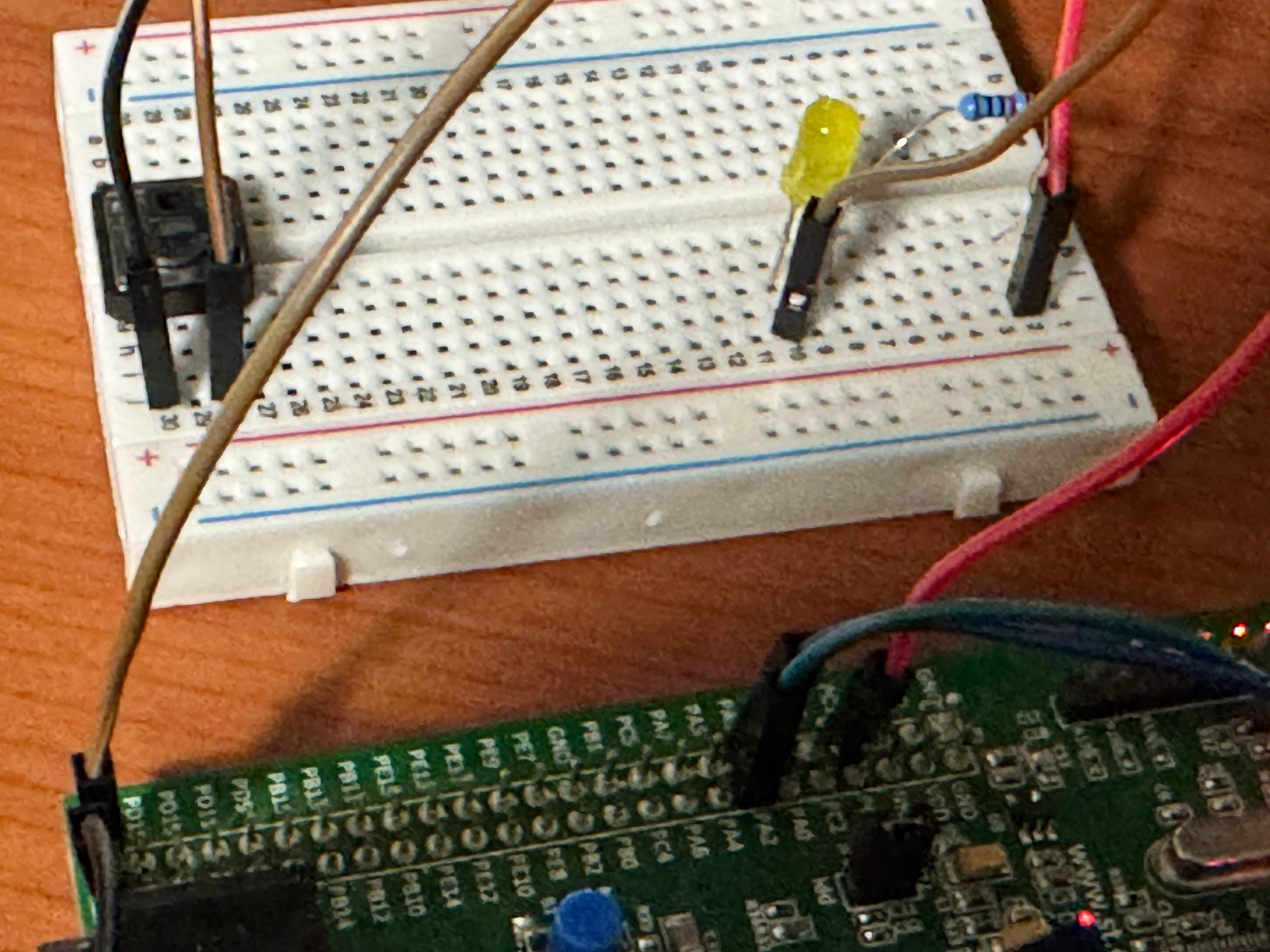
Tbe board provides numerous GPIO pins and many (if not most) of them can be used to connect other devices. In this example we use an external LED and attempt to blink the LED. Of course in this case, we need to tell the system the specific pins where the LED is connected and initialize those explicitly:
File : status.ads

0006 | package status is
0007 |    LED : STM32.Board.User_LED renames STM32.Device.PC1 ;
0008 |    procedure Initialize( dev : in out STM32.Board.User_LED);
0009 |    procedure Toggle( dev : in out STM32.Board.User_LED) ;
0010 | end status ;
In this and related projects, the moniker status is used to refer to the external LED. The initialization similar to the OnBoard LEDs :
File : status.adb

0004 |    procedure Initialize( dev : in out STM32.Board.User_LED) is
0005 |    begin
0006 |       Enable_Clock (dev) ;
0007 |       stm32.GPIO.Configure_IO
0008 |         (dev,
0009 |          (stm32.gpio.Mode_Out,
0010 |           Resistors   => stm32.gpio.Floating,
0011 |           Output_Type => stm32.gpio.Push_Pull,
0012 |           Speed       => stm32.gpio.Speed_100MHz));
0013 |       stm32.GPIO.Clear(dev) ;
0014 |    end Initialize;
Once initialized, the external LED is dealt with in the same way as any other LED.
File : blinker_ext.adb

0012 |    status.Initialize( status.LED );
0013 |    loop
0014 |       delay 0.5;
0015 |       status.Toggle ( status.LED );
0016 |    end loop;
During development of course, a proto board is a flexible testing solution:
2.3.3 Morse Code Blinker
Introducing some variations, given a character, its representation in morse code is signaled in this project. The key parameter for this application is the duration of On and Off patterns:
File : morsecode.adb

0143 |    procedure Generate (C : Character; led : in out STM32.Board.User_LED)
0144 |    is
0145 |       use STM32.GPIO ;
0146 |       -- The letter translates into a sequence of symbols in this code.
0147 |       code : Letter_Representation := Translate (C);
0148 |    begin
0149 |       for a in code'Range loop
0150 |          case code (a) is
0151 |          -- Each symbol dot and dash are distinguished by the duration when an LED is set
0152 |          -- and after each symbol is a delay when the LED is cleared.
0153 |             when Dot =>
0154 |                Set (led) ;
0155 |                delay Span (Dot);
0156 |                Clear( led );
0157 |                delay Span (minigap);
0158 |             when Dash =>
0159 |                Set (led);
0160 |                delay Span (Dash);
0161 |                Clear(led);
0162 |                delay Span (minigap);
0163 |             when others =>
0164 |                null;
0165 |          end case;
0166 |       end loop;
0167 |       -- Once all the symbols of a letter are generated, there is an inter letter gap
0168 |       -- before the next letter is generated.
0169 |       delay Span (gap);
0170 |    end Generate;
A simple application signals just one character :
File : blinker_morse.adb

0007 | procedure Blinker_morse is
0008 |    message : constant String := "A" ;
0009 | begin
0010 |    status.Initialize( status.LED );
0011 |    for c of message loop
0012 |       Morsecode.Generate (c, status.LED);
0013 |    end loop;
0014 | end Blinker_morse ;
In real life examples, particularly when there is a lack of convenient output, this can be used to signal an internal condition.
2.4 Project Setup
Standard environment created by alire is modified a little for this project. The pattern is used in the initial set of projects in this group till a more flexible approach is evolved.
File : blinker.gpr

0002 | with "../../adl/boards/stm32f407_discovery/stm32f407_discovery_full.gpr";
0003 | with "../common.gpr" ;
0004 | with "config/blinker_config.gpr";
0005 |
0006 | project Blinker is
0007 |
0008 |    for Target use "arm-eabi" ;
0009 |    for Runtime ("Ada") use "embedded-stm32f4" ;
0010 |
0011 |    for Source_Dirs use ("src/", "config/");
0012 |    for Object_Dir use "obj/" & Blinker_Config.Build_Profile;
0013 |    for Create_Missing_Dirs use "True";
0014 |    for Exec_Dir use "bin";
0015 |    for Main use ("blinker.adb" , "blinker_ext.adb" , "blinker_morse.adb") ;
0016 |    package Compiler is
0017 |       for Default_Switches ("Ada") use common.Compiler_Switches ;
0018 |    end Compiler;
Only a subset of the entire ADL is referenced here - the parts relevant to STM32F4 Discovery boards.
In addition, all the projects in this group will use standard compiler settings which are specified in the common.gpr file included here.
2.4.1 Building the project
With the setup outlined above, building the project is straightforward:
alr buildwhich produces the elf images for all the 3 applications.
2.4.2 Flashing the binary to the board
In this group of projects, openocd is the tool used for flashing the binary. In the case of STM32 boards, st-link is also a possibility.
openocd -f interface/stlink.cfg \
        -f target/stm32f4x.cfg \
        -c 'init; reset halt; program bin/blinker verify reset exit'
In the example above, the elf file generated by the linker is the input for openocd. The elf file contains all the information such as the load address that is needed to flash. In addition the debug symbols are also embedded in the elf file and can be used for debugging.